How to Choose the Perfect Chair for a Dual Monitor Setup
Learn how to choose the perfect ergonomic chair for a dual monitor setup. Discover essential features, posture tips, and setup advice to boost comfort, health, and productivity.
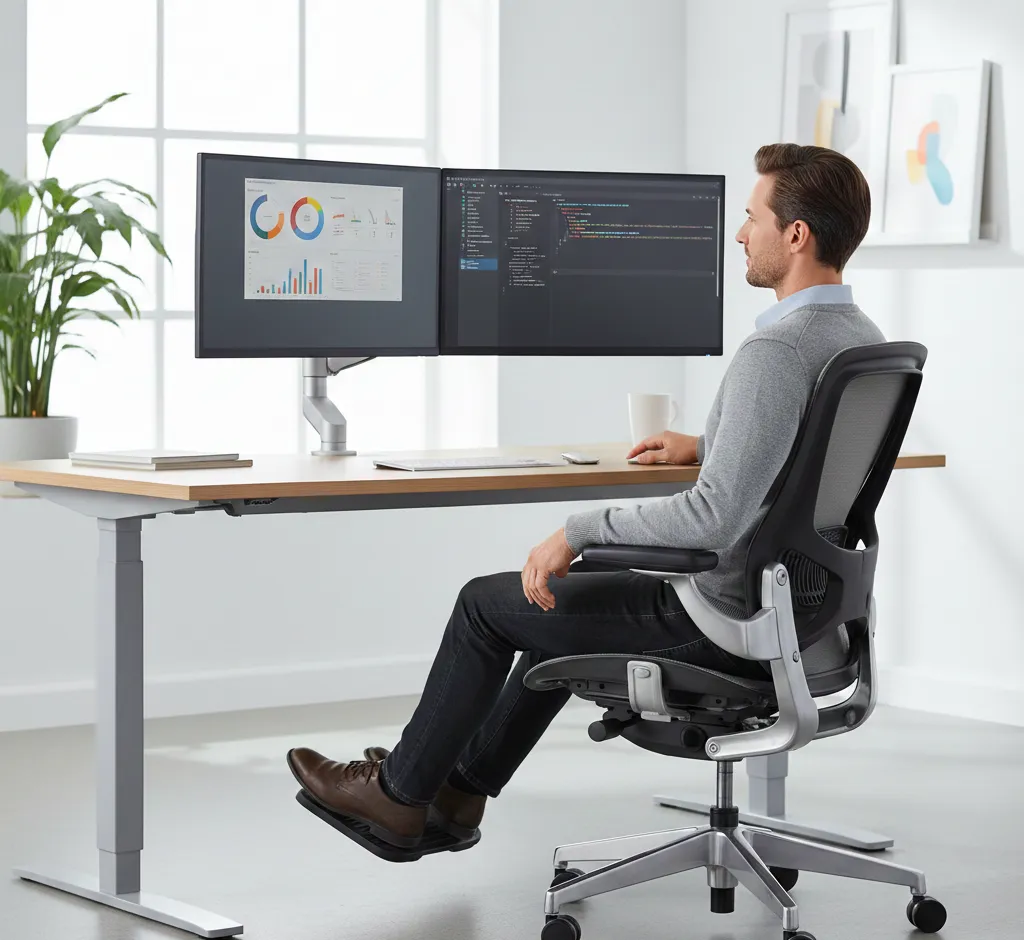
Spending long hours at a dual-monitor setup can significantly boost your productivity, but it can also strain your body if your chair is not designed to support this way of working. The right chair does far more than just provide a place to sit; it helps you maintain healthy posture while you regularly turn, lean, and focus across two screens. Choosing a chair for a dual monitor setup requires a slightly different approach than picking a standard office chair.
This guide walks you through the key features, ergonomic principles, and practical considerations that matter most when selecting the perfect chair for working with two monitors. By the end, you will know exactly what to look for, which adjustments are essential, and how to match your chair to your desk and monitors for maximum comfort and efficiency.
Why Your Chair Matters More with Dual Monitors
With a single monitor, you usually face forward most of the time. With dual monitors, your eyes, neck, and upper body are constantly shifting side to side. If your chair does not support this dynamic movement, you may unconsciously twist your spine, slouch, or lean on one armrest, leading to muscle imbalance and discomfort.
A well-chosen chair for a dual monitor workstation should allow you to:
- Rotate smoothly between monitors without twisting your back.
- Keep your head and neck aligned as you look from one screen to the other.
- Maintain neutral posture in your shoulders, elbows, and wrists while typing.
- Stay comfortable for long sessions without pressure points or fatigue.
These demands make adjustability, support, and stability absolutely critical when choosing a chair for dual screens.
Key Ergonomic Principles for Dual Monitor Seating
Before comparing chair models, it helps to understand the basic ergonomic principles that should guide your choice. These principles ensure that your body stays aligned even as you interact with two monitors.
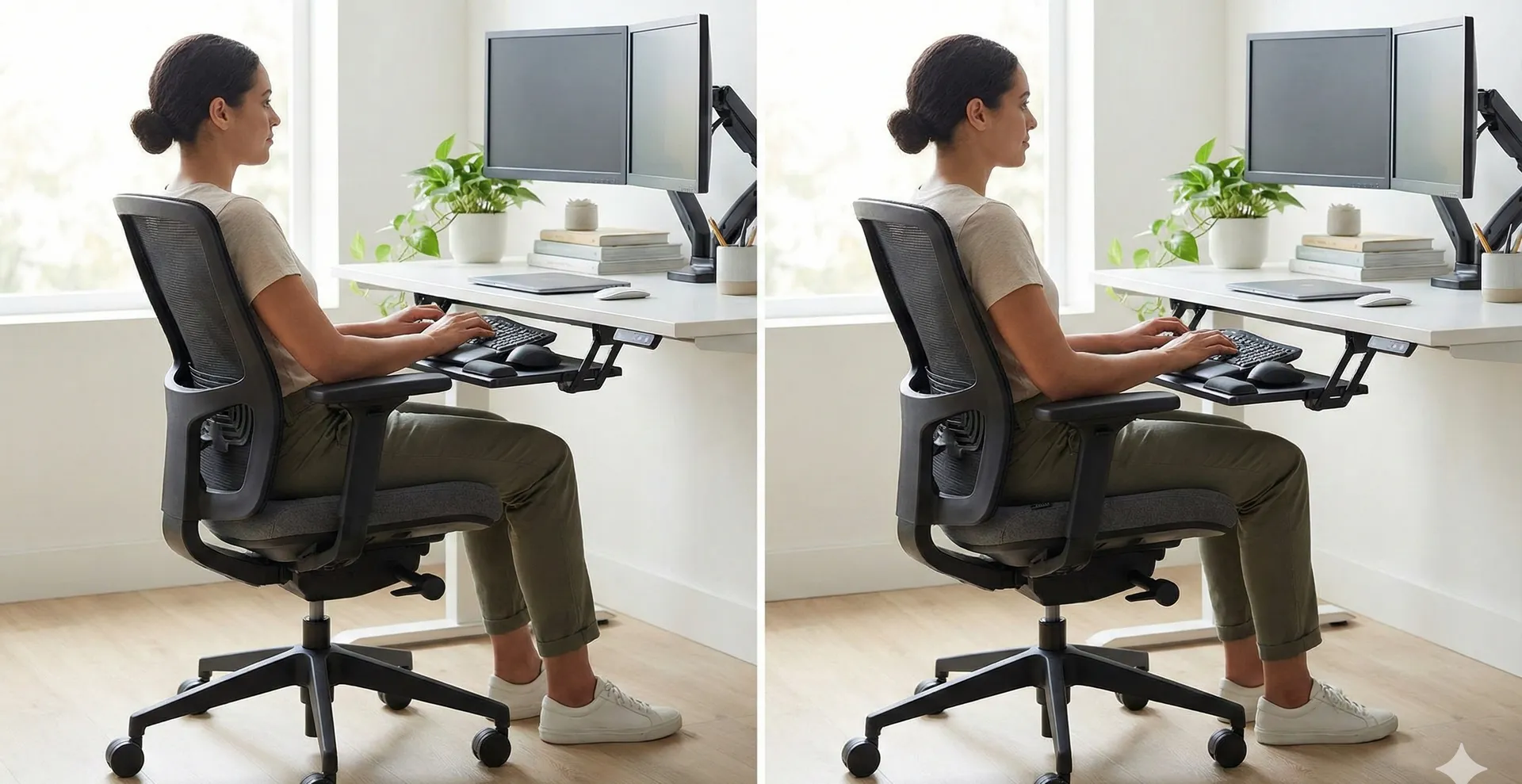
Maintain a neutral posture
Your goal is to sit so that your joints are in neutral positions and no single muscle group works too hard. In practice, this means:
- Feet flat on the floor or a footrest.
- Knees bent at roughly 90–110 degrees.
- Hips slightly above or level with your knees.
- Back supported with a natural S-curve.
- Elbows close to the body and bent around 90 degrees.
- Shoulders relaxed, not hunched.
A good chair should make this neutral posture easy and natural, not something you have to fight to maintain.
Align your body with your primary monitor
Most dual-monitor users have a primary screen they look at most of the time and a secondary screen they glance at. Your chair should be positioned so that you face the primary monitor straight on, with your nose, chest, and hips aligned with the center of that screen.
From this neutral position, you should be able to turn slightly using your chair’s swivel to view the second monitor without twisting your lower back. This makes a smooth, stable swivel mechanism essential.
Encourage movement, not stillness
Healthy sitting is dynamic, not rigid. You will naturally lean, shift, and rotate as you work across two monitors. Instead of trying to sit perfectly still, choose a chair that supports controlled movement:
- A tilt or recline mechanism to lean back when reading or thinking.
- A swivel base to rotate between screens smoothly.
- Stable armrests that support your arms as you move, without getting in the way.
These small movements help reduce fatigue and improve comfort over long work sessions.
Essential Chair Features for Dual Monitor Setups
Once you understand the ergonomic basics, you can evaluate chairs based on specific features. The features below are particularly important when you work with two monitors.
1. Seat height and depth adjustment
Seat height adjustment lets you match the chair to your desk and monitor height so that your eyes line up with the top third of your primary display. Look for:
- A wide height range that fits your body and desk.
- Smooth pneumatic adjustment you can operate while seated.
Seat depth is just as important. When you sit back against the backrest:
- There should be about 2–3 fingers of space between the back of your knees and the seat edge.
- Your thighs should feel supported, without the front edge cutting into your legs.
Adjustable or sliding seat pans are ideal, especially if multiple people use the same workstation.
2. Lumbar and backrest support
Dual monitor use often leads to subtle leaning or twisting. A supportive backrest with good lumbar support helps keep your spine aligned even when you turn slightly.
Look for chairs that offer:
- Height-adjustable lumbar support so you can position it in the natural curve of your lower back.
- Depth-adjustable or dynamic lumbar that adapts as you move.
- A high enough backrest to support the mid to upper back when you lean back to view both monitors.
Mesh backs can improve airflow, while padded backs may feel softer; the key is consistent support along the spine.
3. Swivel base and stable casters
When working with dual monitors, you should rotate your chair rather than twisting your torso. A 360-degree swivel base is non-negotiable for this type of setup.
Also consider the chair’s base and casters:
- A five-point base for stability and safety.
- Casters suitable for your floor (hard casters for carpet, soft or rubberized casters for hard floors).
- Smooth rolling so you can reposition slightly without effort.
Good mobility helps you realign your whole body with whichever monitor you are focusing on at the moment.
4. Armrest adjustability (4D if possible)
Armrests become especially important when your arms move between keyboard, mouse, and potentially external devices across two monitors. Misaligned armrests can force your shoulders to lift or drop, causing tension in the neck and upper back.
Ideally, choose a chair with 4D armrests that adjust in:
- Height (up and down) so your elbows can rest at about 90 degrees.
- Width (in and out) to keep your arms close to your body.
- Depth (forward and backward) to support your forearms when typing or using the mouse.
- Pivot (angle) to match the natural angle of your arms.
Good armrests should support your arms when switching focus between monitors while still allowing your chair to get close to the desk.
5. Recline and tilt tension
Reading documents on one screen while referencing data on the other often means reclining slightly or changing your angle of view. A recline or tilt mechanism lets you lean back comfortably, reducing pressure on your lower spine.
Prioritize chairs that offer:
- Synchro-tilt, where the backrest and seat move in a coordinated ratio.
- Adjustable tilt tension so you can control how easily the chair reclines.
- Multiple lock positions or a free-float mode to vary your posture throughout the day.
The ability to alternate between upright focus on your primary monitor and a more relaxed recline while scanning information across both screens can dramatically improve comfort.
6. Seat padding and materials
Since dual monitor setups often cater to intensive, multi-hour sessions, the chair’s materials and cushioning matter. You need a balance of comfort and firmness so your body remains supported rather than sinking into the chair.
Key considerations include:
- High-density foam that resists flattening over time.
- Breathable fabric or mesh to reduce heat buildup during long work periods.
- Durable upholstery that can handle daily use without tearing or sagging.
If you tend to run warm or work in a hot environment, a mesh back with breathable fabric on the seat can make a noticeable difference.
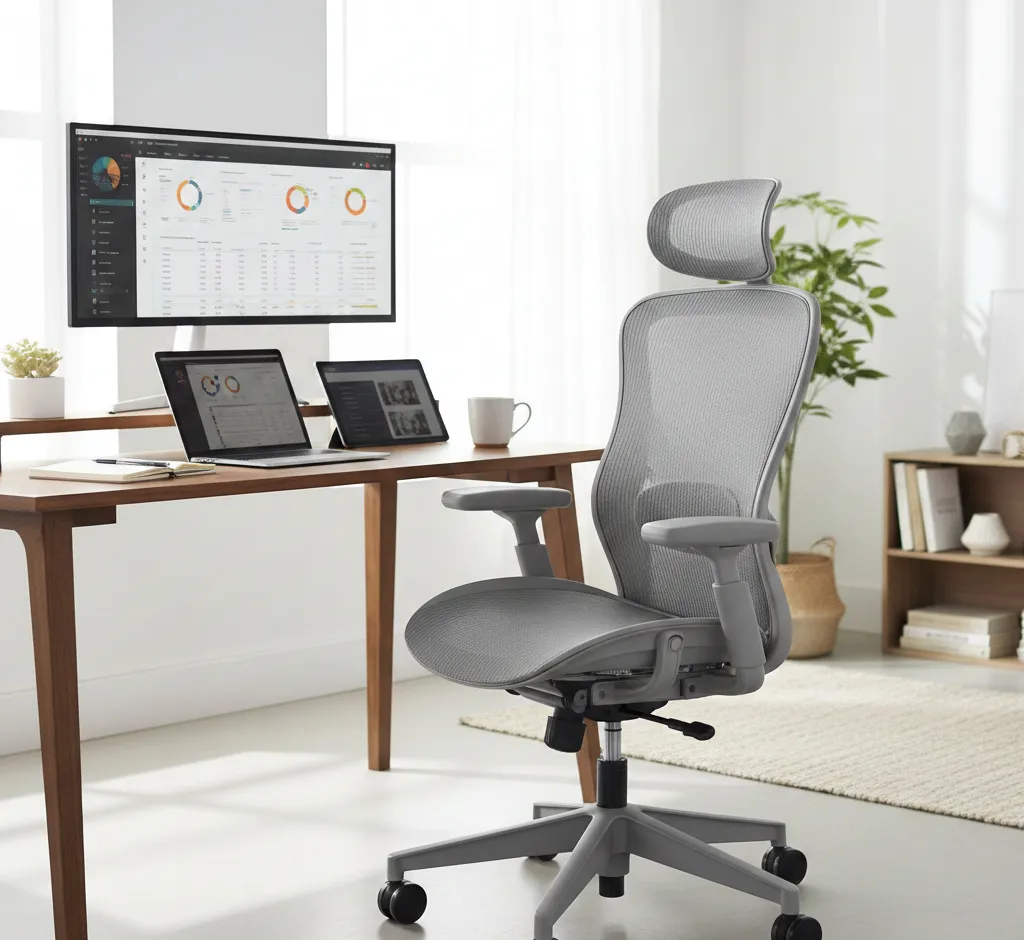
7. Optional: Headrest and neck support
A headrest is not strictly necessary, but it can be beneficial if you often lean back to view content across both monitors, watch videos, or take brief thinking breaks while seated.
A good headrest should:
- Be height-adjustable to match your neck.
- Offer angle adjustment so it supports your head without pushing it forward.
- Encourage a relaxed, neutral head position when reclined.
If you spend most of your time in an upright, task-focused posture, you may prioritize other features over a headrest.
Matching Your Chair to Your Dual Monitor Layout
Even the best chair will not feel right if it does not match your desk height and monitor arrangement. To get the full benefit, consider how your workstation is set up and adjust everything as a single system.
Central vs. angled dual monitors
There are two common ways to arrange dual monitors, and your chair position changes slightly based on which you choose.
1. Side-by-side with a primary monitor
In this layout, your primary monitor sits directly in front of you, and the secondary monitor is off to one side:
- Center your chair and body on the primary screen.
- Use the swivel function to turn your entire body slightly when you need to focus on the second monitor.
- Avoid only turning your neck; move your hips and shoulders too.
This setup works well when one monitor is used most of the time, such as for writing or coding, and the second is used for reference material or communication tools.
2. Slightly curved dual monitors
In a curved layout, both monitors angle inward slightly toward you, forming a shallow V-shape:
- Center your chair between the two screens, so the bezel gap is directly in front of you.
- Use your eyes and small head movements first, then your swivel if you need to focus longer on one display.
- Adjust your chair height so the tops of both screens are at or slightly below eye level.
This arrangement is ideal when you use both monitors almost equally, such as for design work, trading, or multitasking-heavy roles.
Desk height and armrest coordination
Your chair and desk should work together. If your desk is fixed-height, adjust your chair so that:
- Your elbows are roughly level with the desk surface when your shoulders are relaxed.
- Your armrests sit just below or flush with the desktop, allowing the chair to slide under.
- Your wrists remain straight when typing or mousing across both screens.
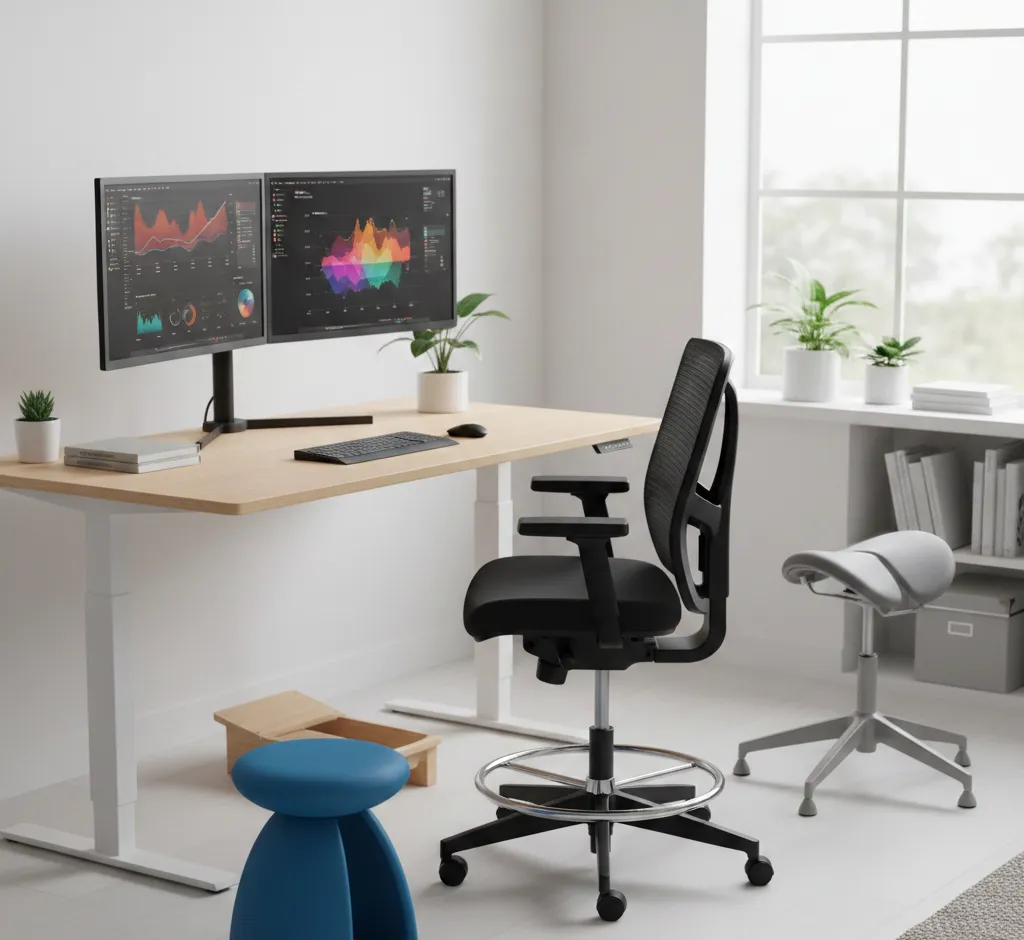
If this setting causes your feet to dangle, add a footrest to maintain proper leg support. If you have a height-adjustable desk, set your chair first, then raise or lower the desk to meet your elbows.
How to Test a Chair for Dual Monitor Use
Whenever possible, test a chair in person or order from a retailer with a good return policy. When testing, simulate your real working style with two monitors.
Step 1: Set up a neutral position
- Adjust the seat height so your feet rest flat and your thighs are roughly parallel to the floor.
- Slide the seat (if adjustable) so there is a small gap between the seat edge and the back of your knees.
- Raise or lower the backrest and lumbar support until your lower back feels gently cradled.
From this starting point, you should feel stable and supported without effort.
Step 2: Simulate switching between two monitors
- Pretend your primary monitor is straight ahead and your secondary is 30–45 degrees to one side.
- Rotate your chair slightly using the swivel base to “look” at the second monitor.
- Notice whether your lower back stays supported or whether you feel your torso twisting.
If you feel strain in your lower back, upper back, or neck when you turn, the chair may lack sufficient lumbar support or smooth swivel motion for dual monitor use.
Step 3: Check arm and shoulder comfort
- Rest your forearms on the armrests as if you were typing or mousing.
- Adjust the armrest height so your shoulders relax and do not lift toward your ears.
- Move the armrests inward or outward so your elbows stay close to your body.
- Rotate slightly as if switching focus between monitors and see if your arms remain supported.
A good chair will keep your arms supported even when you turn a bit, without forcing awkward angles.
Step 4: Evaluate comfort over time
Comfort is not just about the first five minutes. If you can, sit in the chair for at least 20–30 minutes, replicating your usual posture and movements. Ask yourself:
- Do any pressure points appear on your thighs, hips, or lower back?
- Does the seat feel too firm or too soft?
- Can you change position easily without losing support?
Since dual monitor work often involves long sessions, small discomforts can grow into big issues. If anything feels off early, it is unlikely to improve with time.
Common Mistakes When Choosing a Chair for Dual Monitors
Avoiding a few common pitfalls can save you from an uncomfortable and inefficient setup.
Prioritizing style over ergonomics
Gaming-style chairs or sleek designer seats may look impressive in photos but lack the fine-tuned adjustability needed for professional dual monitor use. Do not sacrifice lumbar support, armrest adjustment, or seat depth control just for aesthetics.
Ignoring armrests
Many people focus on the seat and back but overlook the armrests. With dual monitors, your arms travel across a wider work area and need consistent support. Fixed armrests that are too high, too low, or too far apart can quickly cause shoulder and neck strain.
Choosing the wrong size chair
Chairs are not one-size-fits-all. A seat that is too deep can cut into the back of your knees, while one that is too shallow will not support your thighs. If you are particularly short or tall, look for chairs designed for your body type or models with extended adjustment ranges.
Forgetting about your floor type
If your chair does not roll smoothly, you will be tempted to twist your torso instead of rotating your entire body, which is especially harmful in a dual monitor setup. Make sure the casters match your floor, or add a suitable chair mat.
Budget Considerations: Getting the Best Value
A high-quality ergonomic chair can be a significant investment, but it directly affects your health and productivity. When working with a budget, prioritize features that have the biggest impact for dual monitor setups.
Must-have features on any budget
- Adjustable seat height.
- Good lumbar support (even if not highly adjustable).
- Reliable swivel base with a stable five-point design.
- At least height-adjustable armrests.
These basics ensure your posture and movement are reasonably well supported.
Worth paying extra for
- Seat depth adjustment for precise leg support.
- 4D armrests for better alignment with your desk and monitors.
- High-quality foam or mesh that will not compress quickly.
- Advanced tilt mechanisms that encourage varied postures.
If you spend many hours a day at a dual monitor workstation, these upgrades often pay for themselves in reduced discomfort and improved focus.
Final Checklist: Is This Chair Right for Your Dual Monitor Setup?
Before you finalize your purchase, run through this quick checklist:
- Can you sit with feet flat, knees at a comfortable angle, and thighs fully supported?
- Does the lumbar support meet the natural curve of your lower back?
- Can you swivel easily to simulate looking at a second monitor without twisting your spine?
- Do the armrests support your forearms at desk height while keeping shoulders relaxed?
- Is the seat comfortable and breathable enough for long sessions?
- Can you recline slightly to scan across both monitors without losing back support?
If you can answer “yes” to most of these questions, you have likely found a chair that will work well for your dual monitor workstation. Remember that a great chair is just one part of an ergonomic setup. Pair it with well-positioned monitors, a suitable desk, and healthy work habits, and your dual monitor environment can be both highly productive and genuinely comfortable.