How to Select the Perfect Chair for Keyboard Tray Use
Learn how to choose the best ergonomic chair for use with a keyboard tray, including ideal seat height, armrests, back support, and posture tips for a healthier, more comfortable workstation.
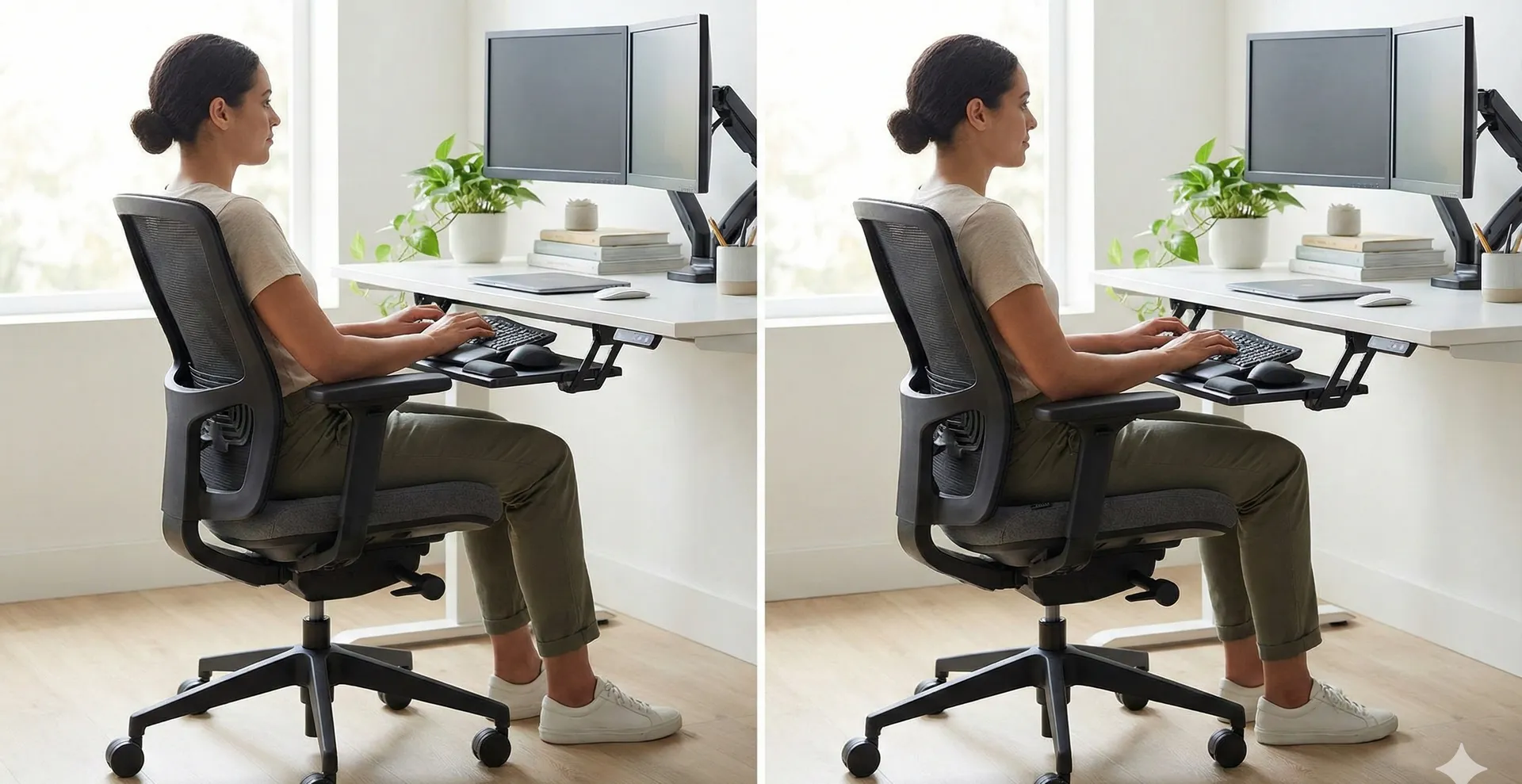
Choosing the right chair for use with a keyboard tray is one of the most important decisions you can make for your comfort, productivity, and long-term health at a computer workstation. A well-matched chair and tray combination keeps your body in a neutral, relaxed posture so your shoulders, arms, wrists, and back experience less strain over long hours of typing and mousing.
Instead of buying a chair in isolation, it is essential to consider how the chair will work specifically with your keyboard tray: its height range, armrest design, seat depth, and back support all influence how easily you can position the tray at a comfortable level near your lap. When these elements align, you gain a workstation that feels natural and responsive, rather than cramped or awkward.
Why chair–tray compatibility matters
Keyboard trays are designed to bring the keyboard and mouse down closer to your lap, allowing your upper arms to rest near your sides and your forearms to angle slightly downward as you type. When your chair is not compatible with this setup, you may end up shrugging your shoulders, reaching forward, or bending your wrists, which can increase the risk of pain and overuse injuries over time.
A compatible chair allows you to sit with your feet flat on the floor or on a footrest, hips slightly higher than knees, and elbows roughly at or just above the height of the keyboard tray. This combination reduces tension in your neck and shoulders, helps maintain the natural curves of your spine, and supports more relaxed, efficient typing.
Key ergonomic principles to follow
Before looking at individual chair features, it helps to understand the basic ergonomic principles that should guide your choices. These principles are not about perfection, but about keeping your body as neutral and balanced as possible throughout the day, so no single joint or muscle group absorbs all the stress.
- Keep joints naturally aligned: ears over shoulders, shoulders over hips, with elbows close to the body and wrists in line with the forearms.
- Reduce reaching and twisting by bringing the keyboard tray, mouse, and chair adjustments to you instead of adapting your body to poor positions.
- Support the spine with the backrest rather than using your muscles alone to hold you upright for hours.
Ideal sitting posture for keyboard tray work
When your chair and keyboard tray are set up well, your posture will feel stable and relaxed rather than stiff or forced. Think of your body as forming gentle angles rather than straight lines or sharp bends: your arms fall naturally from the shoulders, your hips and knees are open, and your wrists stay in a comfortable, straight alignment over the keys.
- Head and neck: facing forward with your gaze roughly level, not tilted sharply up or down.
- Shoulders and arms: shoulders dropped away from the ears, upper arms close to the torso, elbows around 90–110 degrees.
- Wrists and hands: wrists straight and floating above the tray, not pressed into sharp edges; fingers curved lightly over the keys.
Chair height: matching the tray to your body
Chair height is one of the most critical factors when using a keyboard tray, because it determines how well your elbows line up with the tray surface. If the chair is too low, you end up lifting your shoulders or bending your wrists upward; if it is too high, your feet dangle and your thighs press into the seat, causing circulation issues and discomfort.
The ideal arrangement allows you to sit with your feet flat on the floor (or on a stable footrest), knees at roughly the same height or slightly lower than your hips, and the keyboard tray set so your hands can float over the keys with your elbows close to your sides. This usually means selecting a chair with a wide height-adjustment range so the seat can go high enough for taller users and low enough for users with shorter legs while still aligning well with the tray.
Seat depth and width considerations
Seat depth—how far back you can sit before the front edge of the seat meets your knees—directly affects how comfortably you can use a keyboard tray. If the seat is too long, you may have to sit forward, losing contact with the lumbar support and making it harder to keep the tray close enough to your body. If it is too short, your thighs will not be properly supported, increasing pressure on your sitting bones.
A good rule is to allow a small gap—typically two to three finger widths—between the front edge of the seat and the back of your knees when you are fully back against the backrest. Many ergonomic chairs offer sliding seats or multiple size options, which can be especially helpful if you share a workstation with others or you are outside the average height range.
Backrest design and lumbar support
Even with a keyboard tray set up correctly, you still spend long periods sitting, so the backrest must support the natural S-shaped curve of your spine. A high-quality chair will include built-in lumbar support or an adjustable lumbar pad that can be moved up or down to fit the curve at the small of your back.
When you lean back slightly into the backrest, you should feel your pelvis and lower back supported, with the upper back allowed to relax without collapsing. This support allows you to keep the keyboard tray at the right height while your torso remains upright or slightly reclined, rather than hunched forward to reach the keys.
Armrests: helping or hindering the tray?
Armrests can either improve your comfort or interfere with your keyboard tray, depending on their design. Fixed or bulky armrests may bump into the tray platform or prevent you from pulling the chair close enough, forcing you to reach forward and defeating the purpose of having a tray.
Look for armrests that are height-adjustable, width-adjustable, and preferably pivoting, so they can be positioned just under your forearms without lifting your shoulders or getting in the way of the tray. In some setups, users choose to lower or move the armrests slightly back so that their elbows can hang naturally by their sides while the forearms lightly brush the rests during breaks from typing.
Seat cushioning and edge design
The seat cushion and front edge design play a quiet but important role in long-term comfort. A seat that is too soft can cause you to sink in, changing the height relationship between your body and the keyboard tray over time, while one that is very hard may create pressure points under the thighs and sitting bones.
A gently contoured seat with sufficient, medium-firm cushioning helps distribute your weight and maintain a consistent sitting height throughout the day. A waterfall front edge—rounded and sloping slightly downward—prevents compression at the back of the knees and makes it easier to keep your feet flat on the floor or on a footrest while using the tray.
Mobility, base, and stability
Because a keyboard tray positions the input devices closer to your body, you want a chair that moves smoothly without feeling loose or unstable. A sturdy five-point base with quality casters suited to your floor type allows you to reposition yourself easily without sudden jerks that can stress your wrists or shoulders.
At the same time, the chair should not roll away unexpectedly when you lightly rest your hands on the keyboard tray. A good balance between easy rolling and controlled resistance helps you maintain a stable, centered position in front of the monitor while still being able to move in and out of the workstation as needed.
Compatibility with different types of keyboard trays
Not all keyboard trays are mounted in the same way, and your chair choice should reflect the specific tray you use. Under-desk trays that slide and tilt beneath the work surface require enough clearance between the armrests and the desk, while chair-mounted trays attach to the chair itself and demand particular attention to the chair’s arm design and central column.
In most office setups, desk-mounted trays offer better ergonomic adjustability and stability, but they require a chair that can approach the desk closely and fit under it. For chair-mounted systems, prioritize chairs with strong central posts, compatible arm shapes, and a height range that still allows your feet to rest securely while the tray sits at a comfortable typing level.
Adjustability features to prioritize
When shopping for a chair specifically for keyboard tray use, it helps to focus on a core set of adjustments rather than getting distracted by cosmetic features. These adjustments give you the flexibility to fine-tune the fit as your needs change or as you modify other parts of your workstation, such as your monitor stand or footrest.
- Seat height adjustment with a wide range to accommodate the tray height and your leg length.
- Seat depth adjustment so the backrest can support your spine while leaving space behind the knees.
- Backrest recline and tension controls to allow for small posture shifts without losing support.
- Armrest height, width, and angle adjustments to avoid conflict with the tray while supporting your arms.
How to set up the chair with your tray
Once you have a suitable chair and keyboard tray, a systematic setup process ensures you get the most benefit from the combination. Start with the chair height, because that determines how your body relates to the floor and the tray, then adjust the tray and monitor to align with your new position.
- Adjust chair height so your feet rest flat on the floor or on a footrest, with hips slightly higher than knees.
- Slide your hips to the back of the seat and adjust seat depth and lumbar support so your lower back maintains a gentle curve.
- Set the keyboard tray height so your elbows are roughly at or slightly above tray level, with forearms angled slightly downward.
- Adjust the tray tilt to a slight negative angle, if available, allowing your wrists to stay straight while your fingers drop onto the keys.
- Position armrests just under your relaxed forearms, if you use them, without forcing your shoulders upward.
Common mistakes to avoid
Even with a good chair, several common setup mistakes can undermine your comfort and the advantages of using a keyboard tray. Being aware of these pitfalls helps you fine-tune your configuration and notice early signs of discomfort before they become serious issues.
- Choosing a chair that cannot go high or low enough to match your tray, leading to raised shoulders or dangling feet.
- Allowing armrests to block the tray or push you away from the desk, causing you to reach forward to type.
- Sitting on the front edge of the seat and losing contact with the backrest, which eliminates lumbar support and encourages slouching.
Special considerations for different body types
People with different heights and proportions often need specific features from their chair to work comfortably with a keyboard tray. Petite users may require chairs that adjust lower than standard models and benefit from shorter seat depths or added footrests to keep their feet supported without raising the tray too high relative to their elbows.
Taller users may need higher seat ranges, deeper seats, and backrests that reach the upper back and shoulders. For users with a shorter torso and longer legs, prioritizing adjustable lumbar positioning and monitor height becomes especially important so that the tray can remain at a comfortable arm level while the screen stays at a natural viewing height.
Balancing sitting with movement
No matter how well you match your chair and keyboard tray, staying in one position for too long can still cause fatigue and discomfort. Building movement into your day—standing briefly, walking, or changing your sitting angle—helps relieve pressure on joints and muscles and encourages healthier circulation.
A chair with easy recline, seat angle adjustments, and smooth movement allows you to make micro-adjustments without fully reconfiguring your setup. Combining these small changes with regular breaks away from the workstation makes your keyboard tray arrangement more sustainable over long periods of computer work.
Putting it all together
The best chair for keyboard tray use is not defined by brand alone, but by how well its design and adjustability support your body’s natural posture while working at the tray. By focusing on seat height and depth, backrest and lumbar support, armrest adjustability, and overall stability, you create a workstation where the keyboard and mouse meet you in a comfortable, natural position.
With a thoughtfully chosen chair and properly adjusted keyboard tray, you reduce strain, improve comfort, and support better focus throughout your workday. Taking the time to fine-tune these elements once can pay off with many hours of healthier, more enjoyable computer use.